> For the complete documentation index, see [llms.txt](https://help.everask.ai/llms.txt). Markdown versions of documentation pages are available by appending `.md` to page URLs; this page is available as [Markdown](https://help.everask.ai/products-and-features/ai-docs/how-to-use-ai-docs.md).
# How to use AI Docs?
**AI Docs** makes creating, editing, and refining documents simple and efficient, whether you’re generating content from scratch, summarizing files, or enhancing existing text.
### Getting Started
1. **Create a new document**
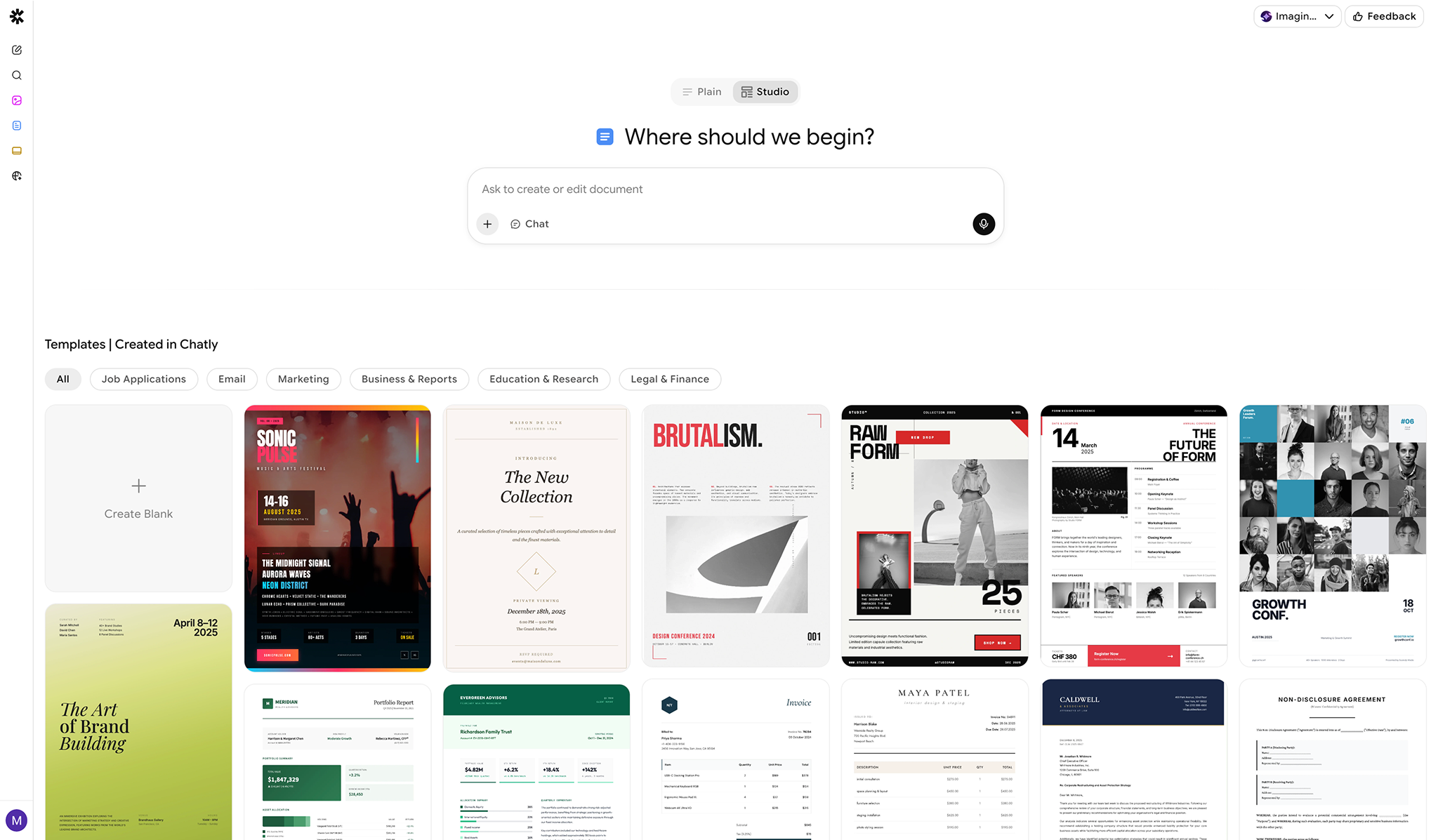
* Choose your document mode.
* Start with a **blank document**, choose a **template**, use a **prompt** to generate content, or open any pre-existing project from recent projects!
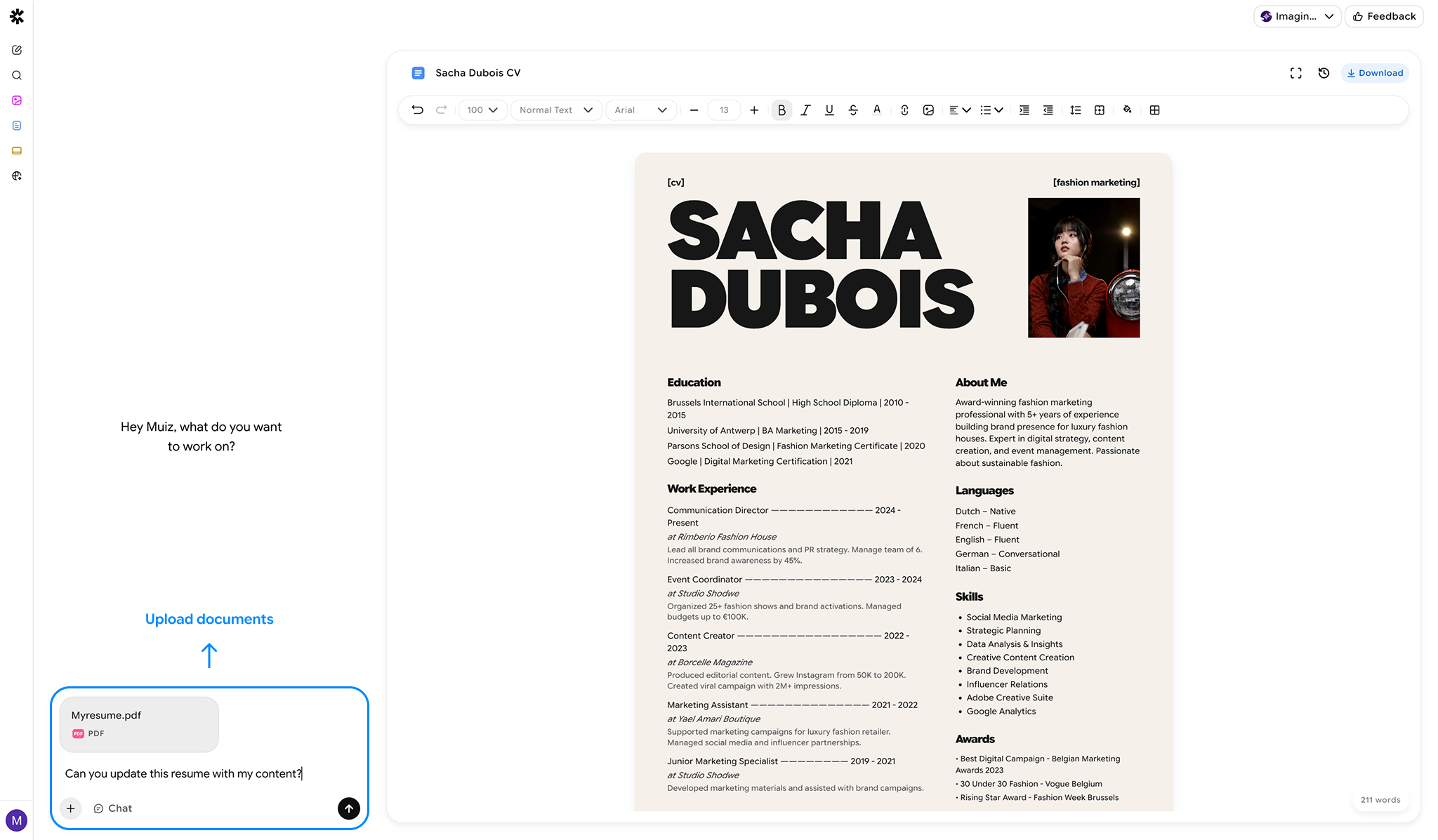
2. **Upload files**
* Attach supported files or images to reference in your document.
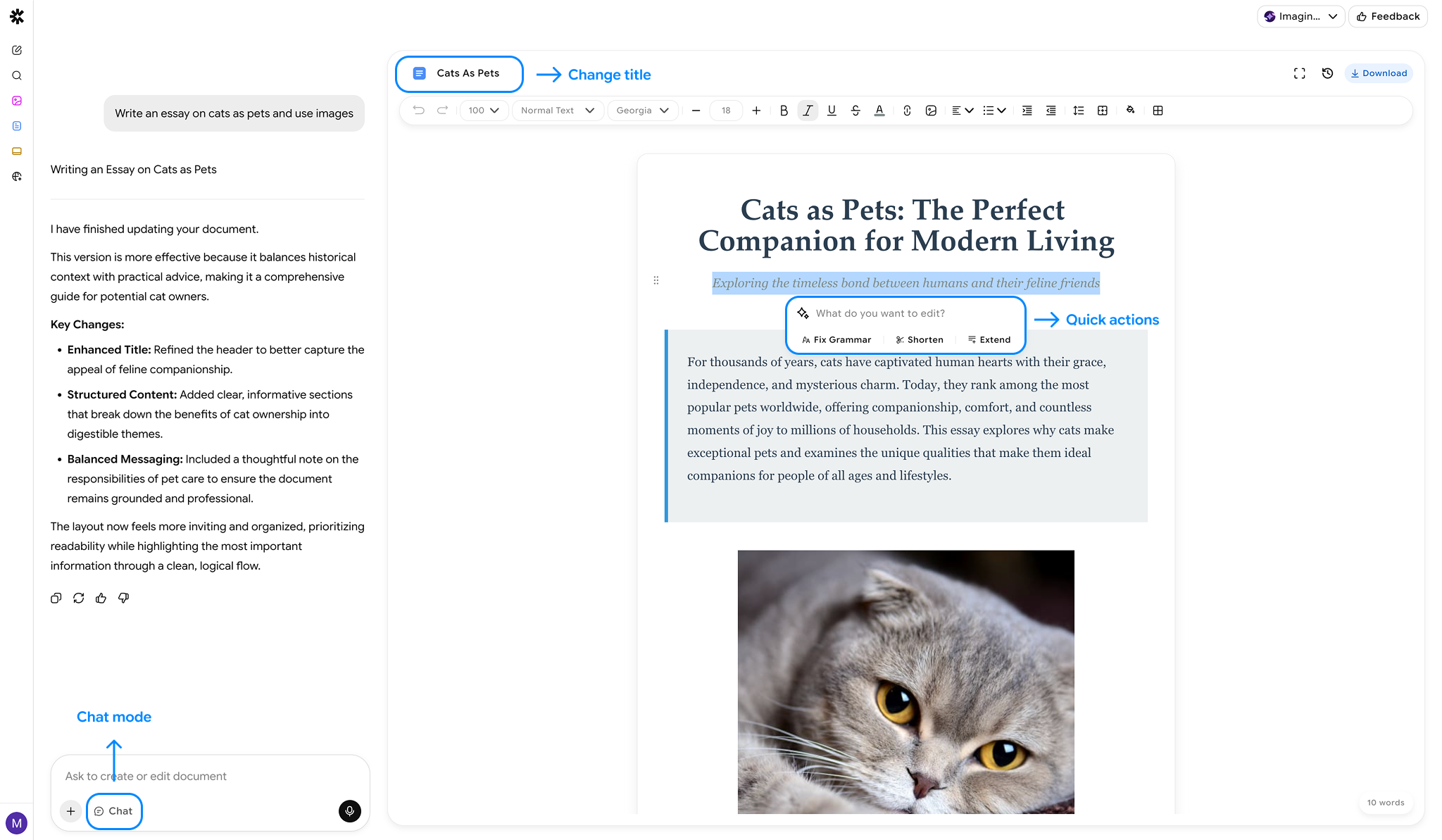
3. **Select AI tools**
* Use features like **Refer in Chat**, **Fix Grammar**, **Shorten**, and **Extend** to improve your text.
4. **Edit manually**
* Make changes directly in the editor alongside AI suggestions.
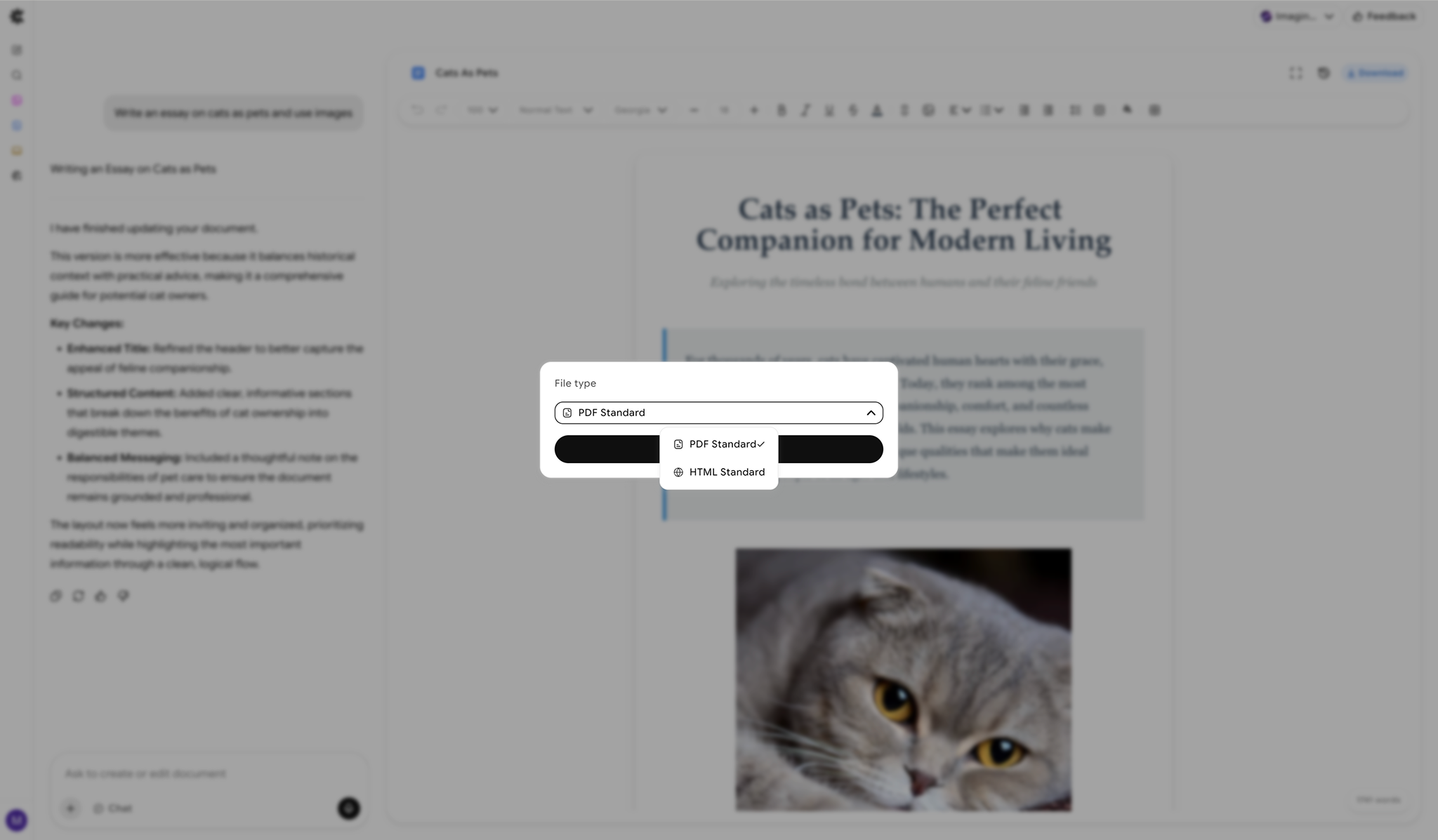
### Exporting Documents
* Export documents manually in **PDF** or **HTML** formats.
### History
There are 3 ways to view recent documents:
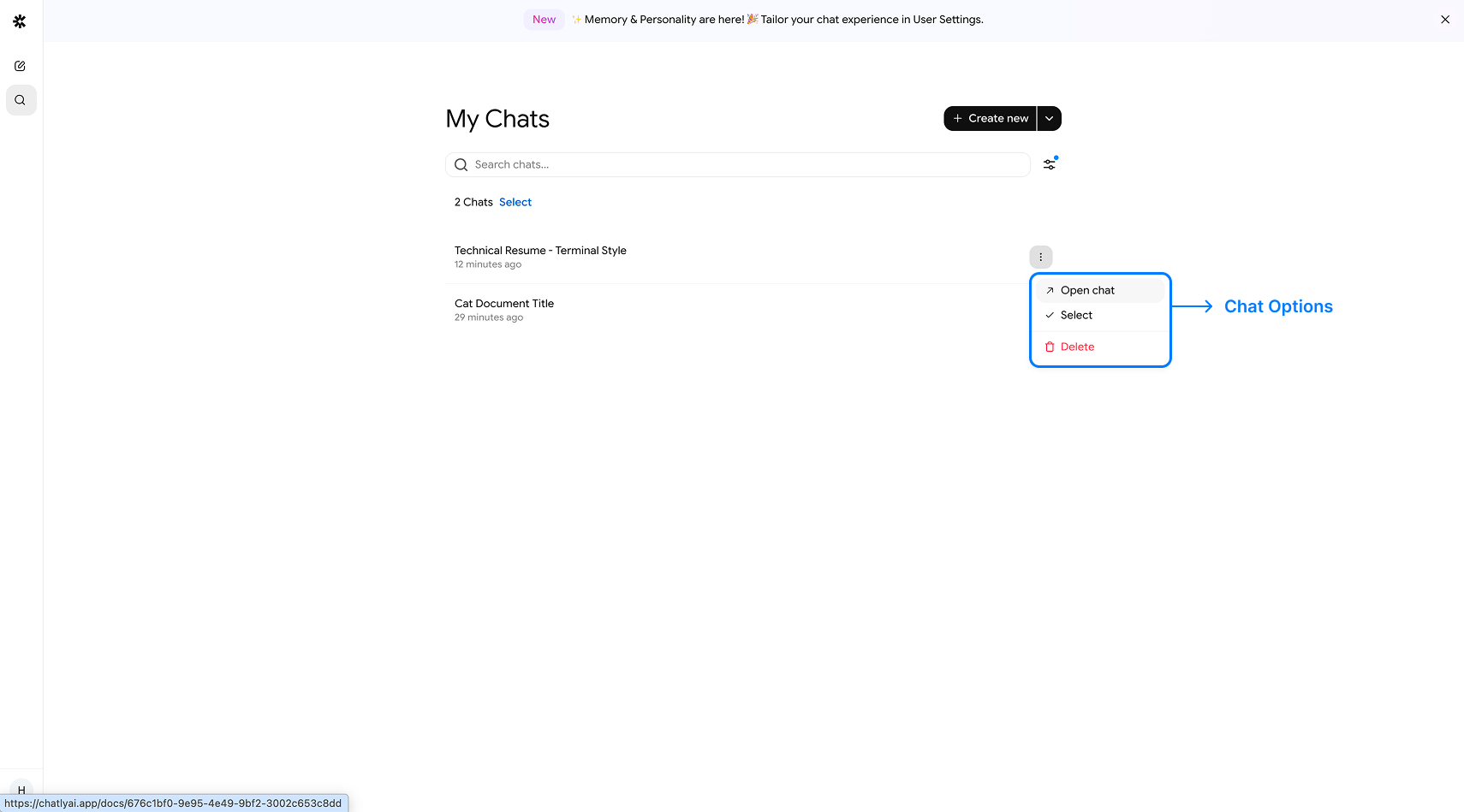
1. **Search Chats:**
1. Access past documents and revisions by clicking on the "Search Chats" button in the left nav bar to **review, refine, or continue work**.
2. Click Select Chats to Delete bulk chats
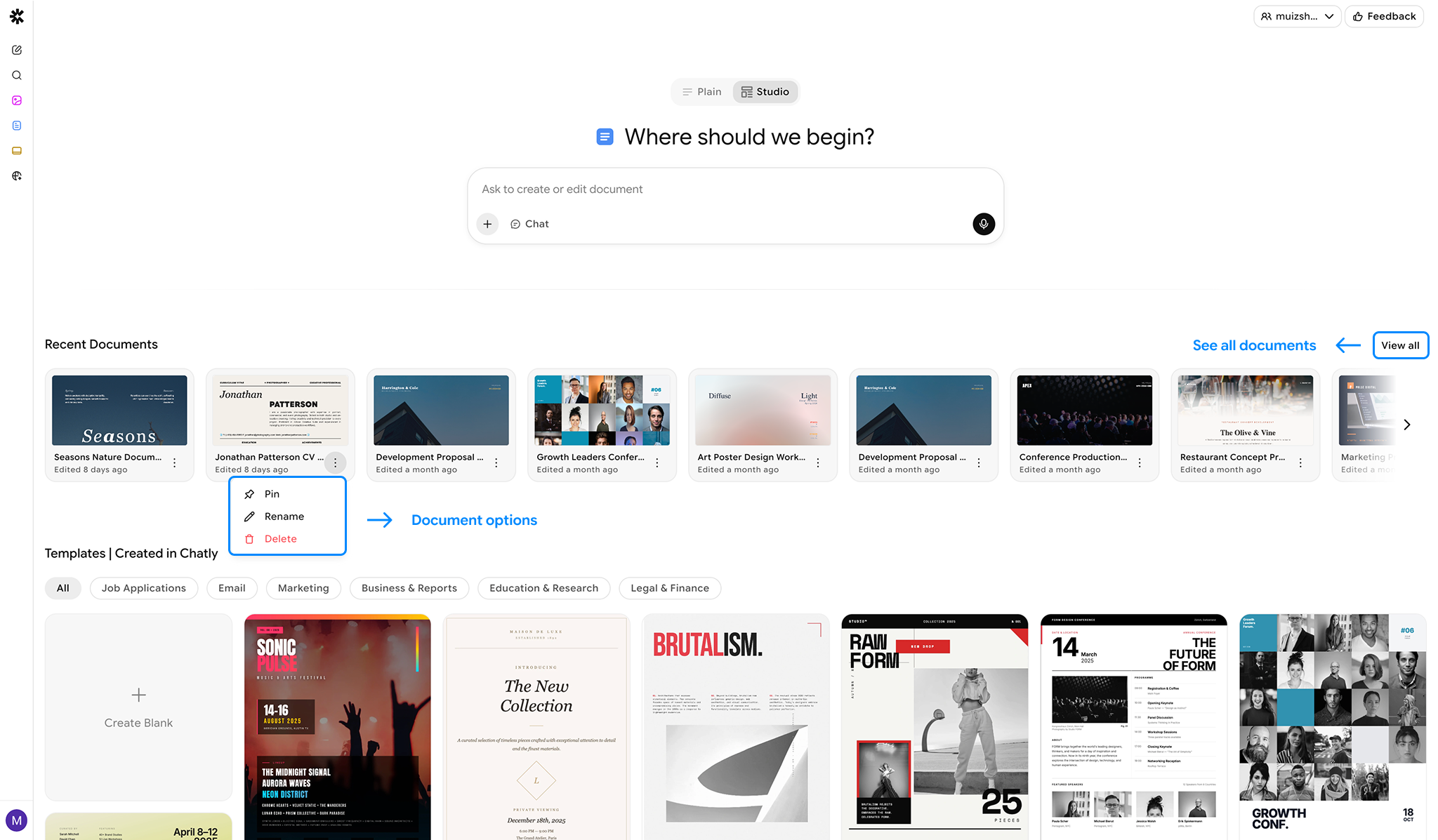
2. **Recent Documents:**
1. Contains a list of your top 20 most recent documents. You can directly open the chats or:
1. Pin
2. Rename
3. Delete
2. Use "View All" to go to the Search Documents page with all of the AI Doc chats ever
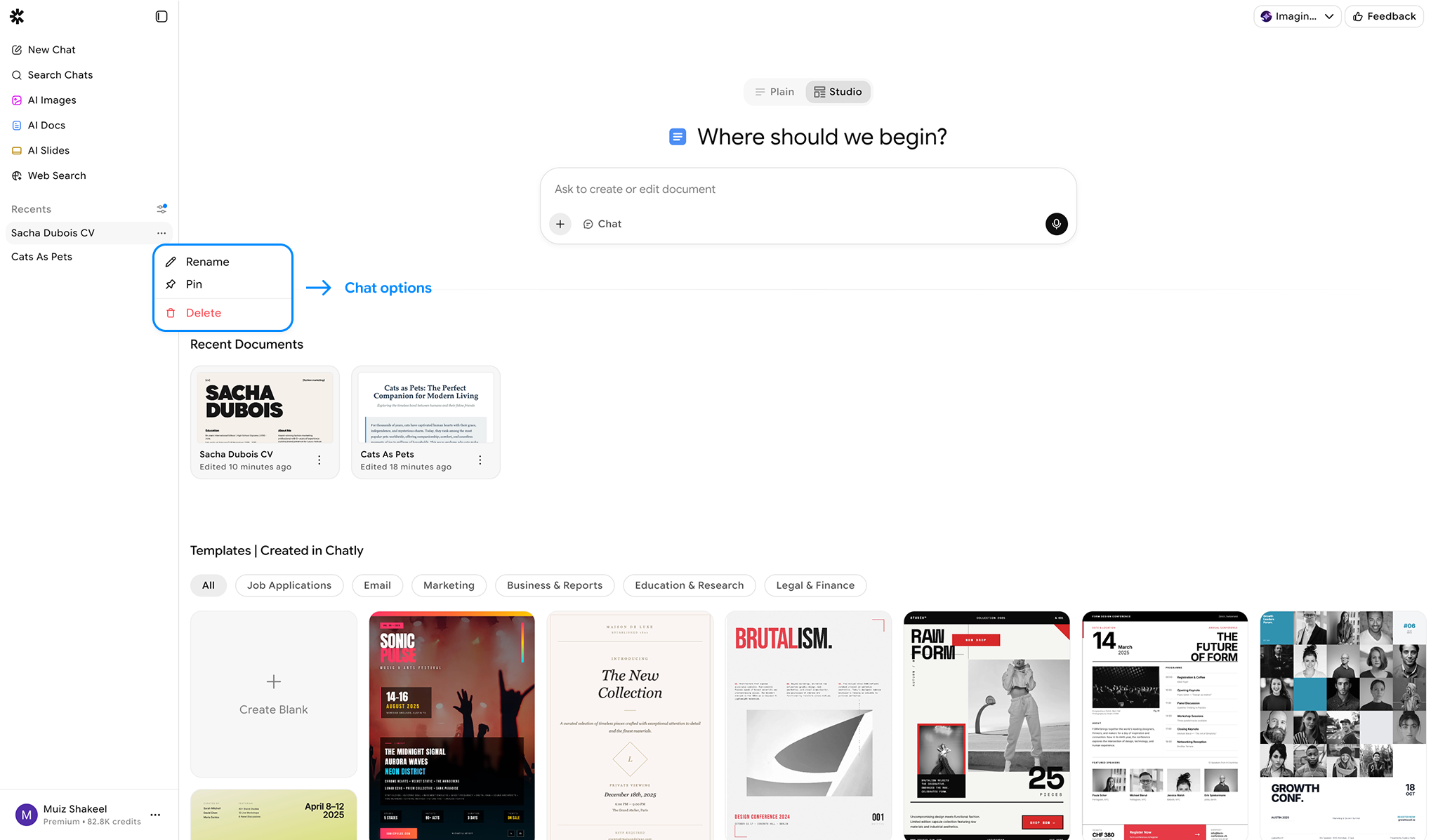
3. **Recents:**
1. Access past documents and revisions by expanding the left nav bar
2. Either go directly to the chat or:
1. Pin
2. Rename
3. Delete
### Usage
* Each operation counts toward your usage limits by consuming credits based on the actions performed