> For the complete documentation index, see [llms.txt](https://help.everask.ai/llms.txt). Markdown versions of documentation pages are available by appending `.md` to page URLs; this page is available as [Markdown](https://help.everask.ai/products-and-features/ai-motion-design/how-to-use-ai-motion-design.md).
# How to Use AI Motion Design
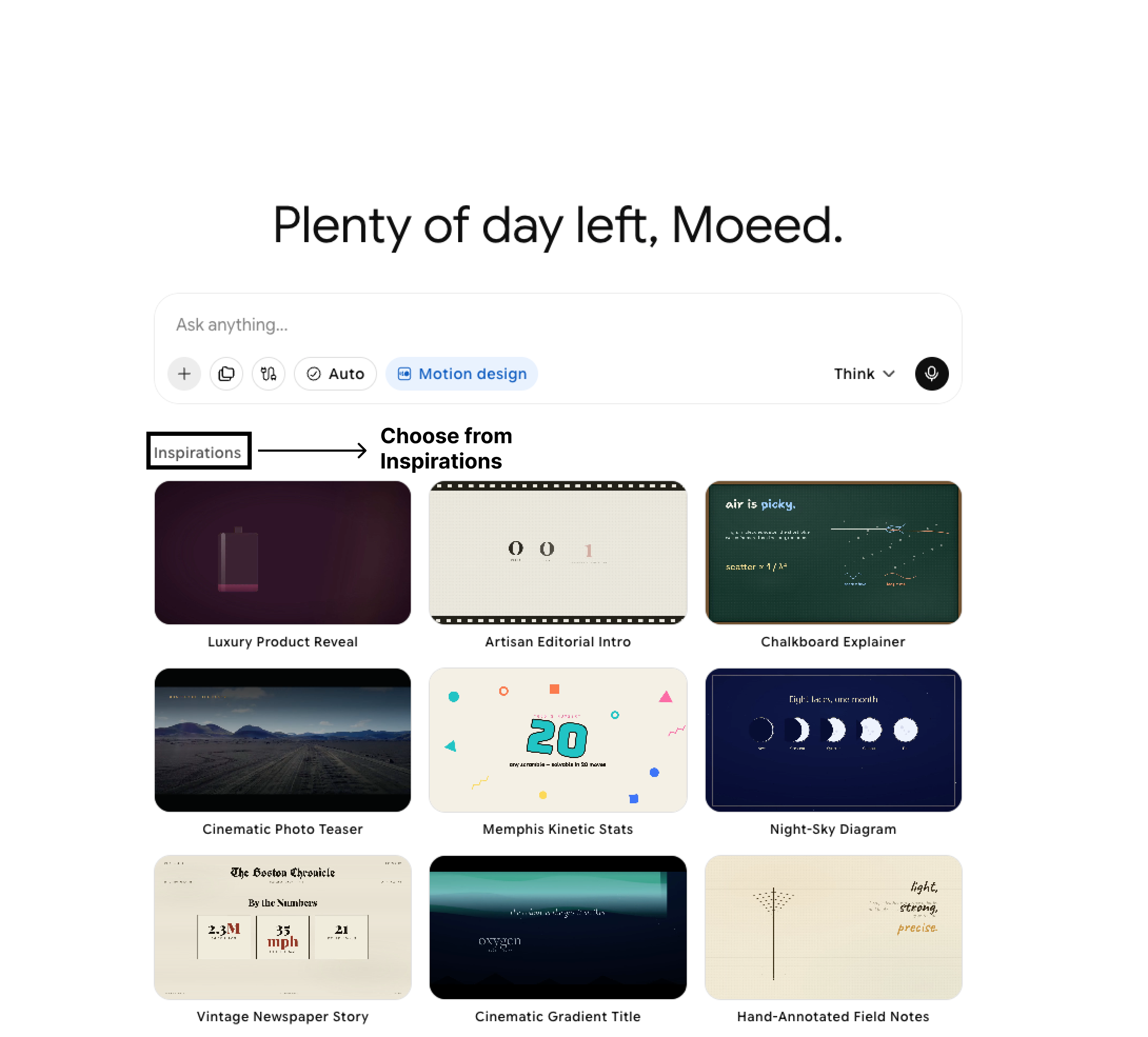
To start from a template, browse the Inspirations gallery and click a template to preview it. Choose a colour theme if the template offers one, then click Recreate to bring it into your chat. Add a short prompt to customise details like the text, then submit.
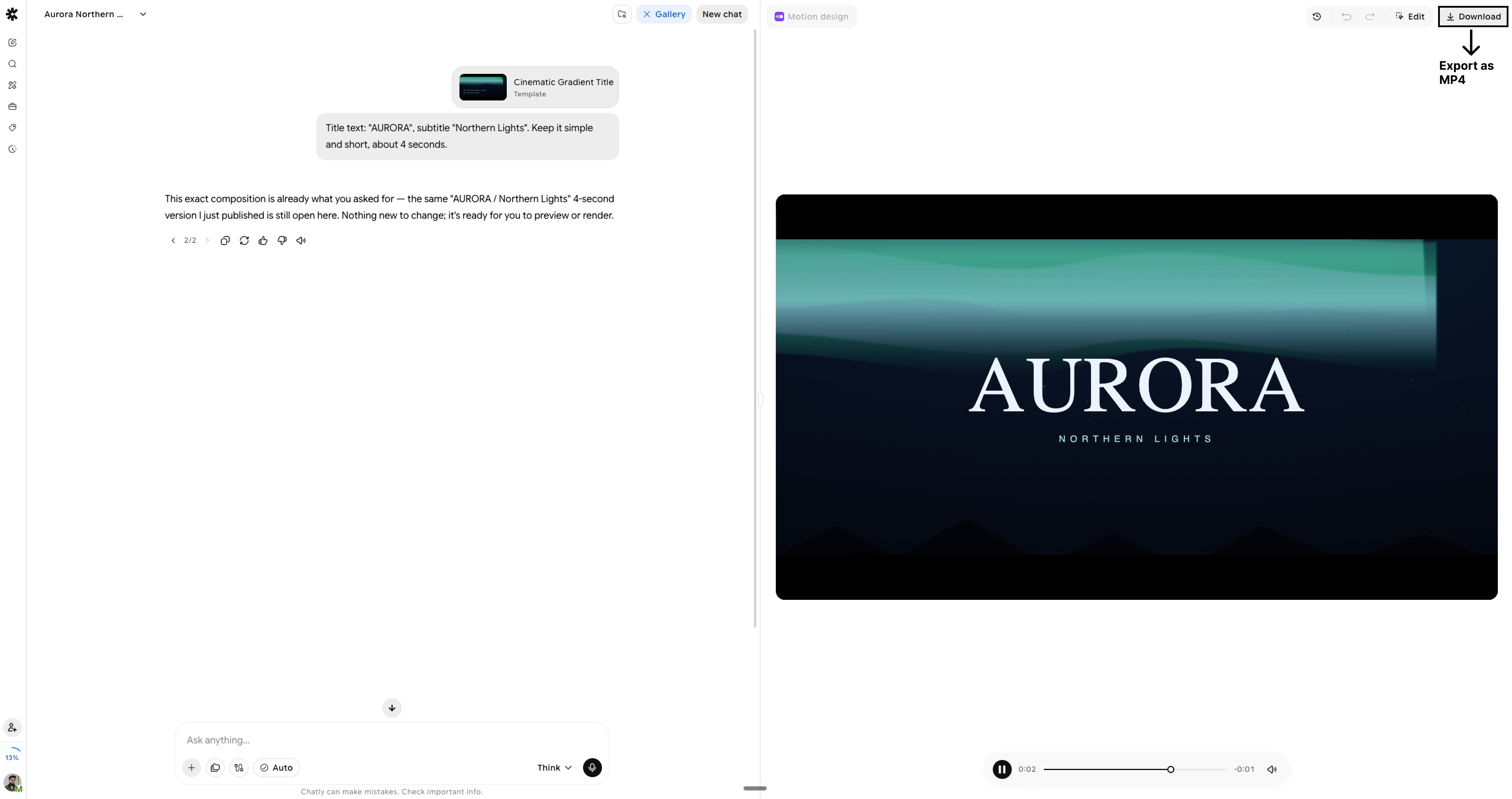
Once your clip is ready, it opens in the editor where you can play it back, scrub through any frame, and see how long it runs.
Refine it by chatting. Ask for changes like a different font, a new background colour, a faster animation, or a fade in effect, and the agent updates the same clip rather than starting over.
Export your clip by clicking Render MP4. You will see a notice that your video is rendering, so keep the tab open until it finishes.
Find past designs anytime from the Gallery, where each one is saved and named automatically.