> For the complete documentation index, see [llms.txt](https://help.everask.ai/llms.txt). Markdown versions of documentation pages are available by appending `.md` to page URLs; this page is available as [Markdown](https://help.everask.ai/products-and-features/ai-videos/how-to-use-ai-videos.md).
# How to use AI Videos?
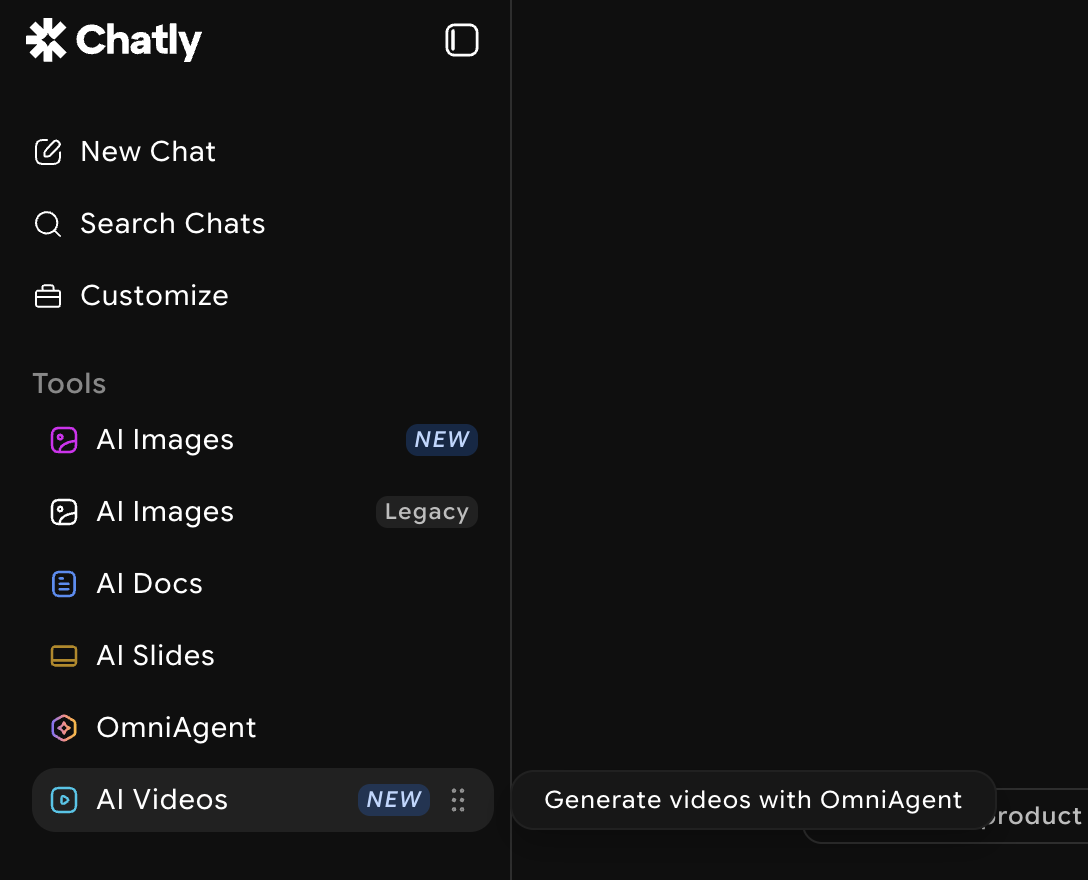
1. **Open AI Videos** – Navigate to the AI Videos tool from the main dashboard or tools menu.
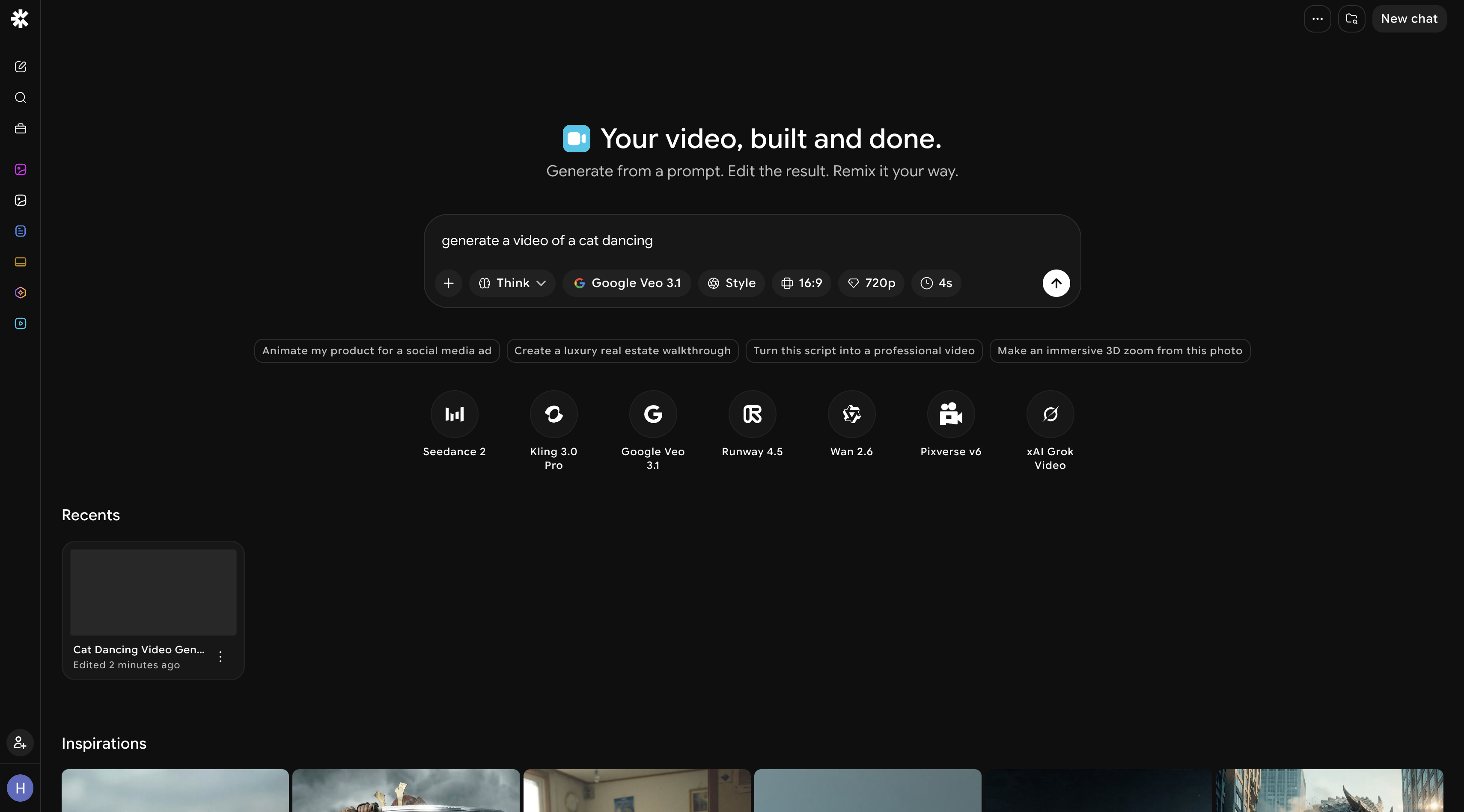
2. **Enter a prompt** – Type a description of the video you want to generate. Be as specific as possible about the scene, subject, mood, or action.
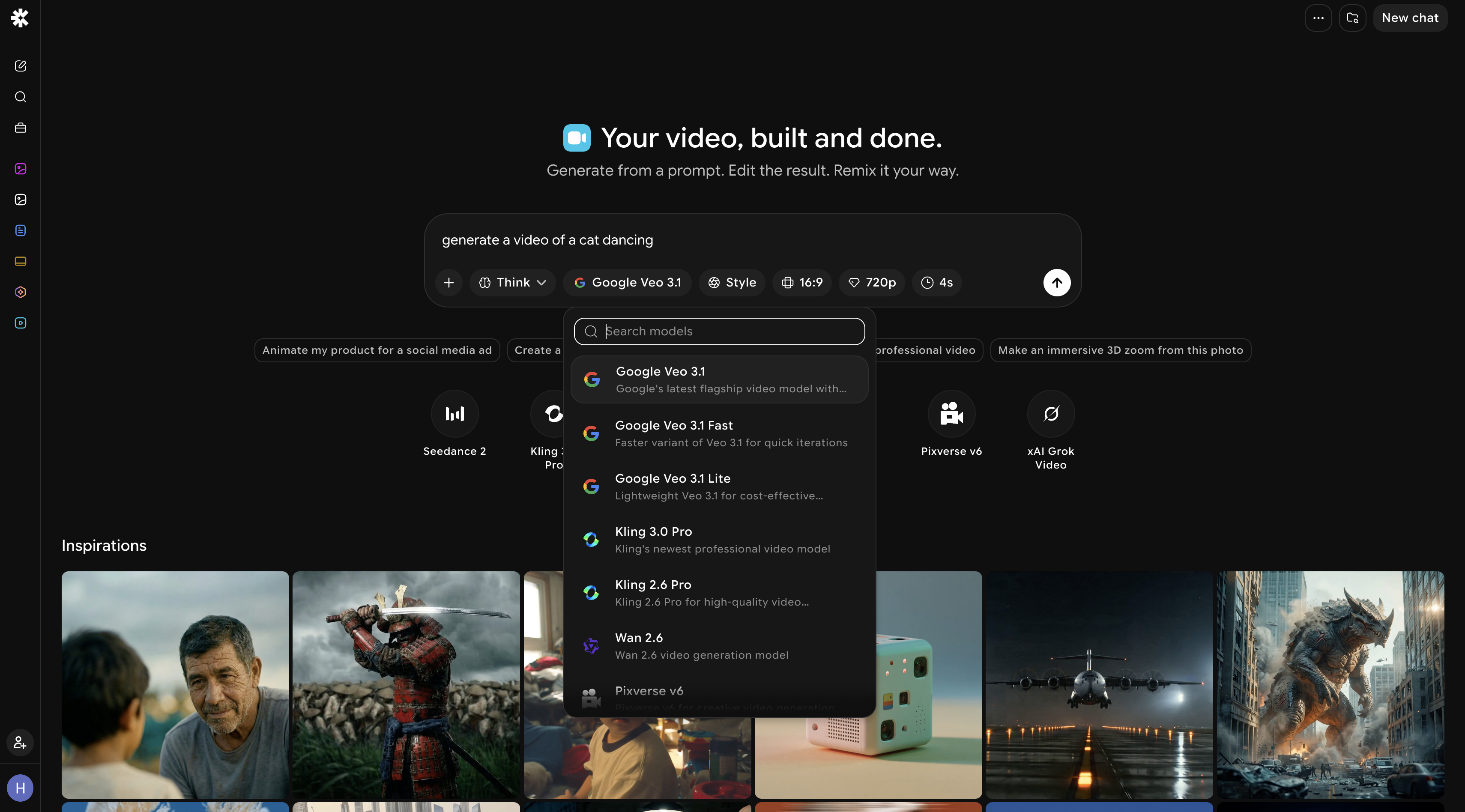
3. **Select a model** – Choose a video generation model based on your desired quality and style.
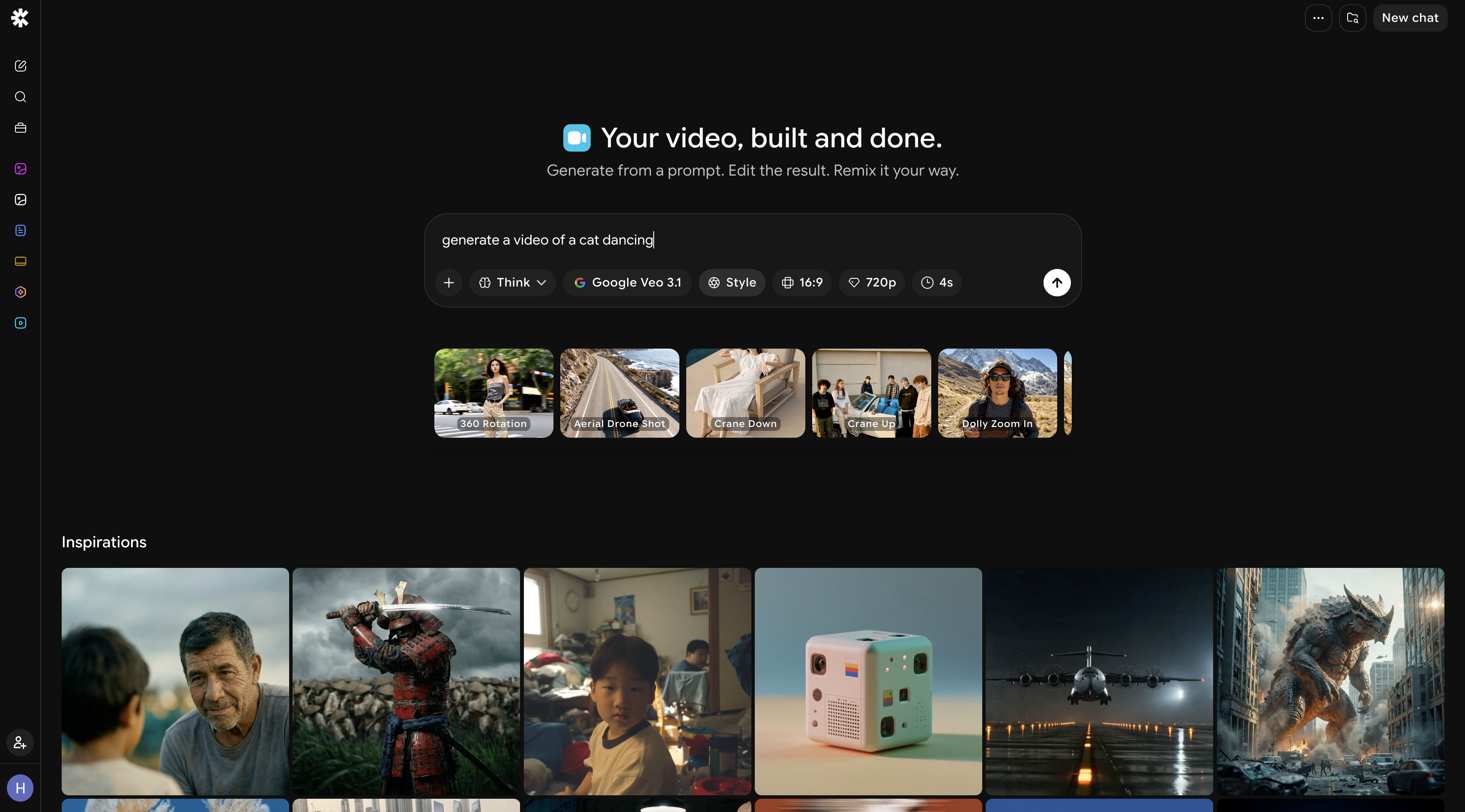
4. **Choose a style** – Pick a visual style that matches your creative direction (e.g. cinematic, animated, realistic).
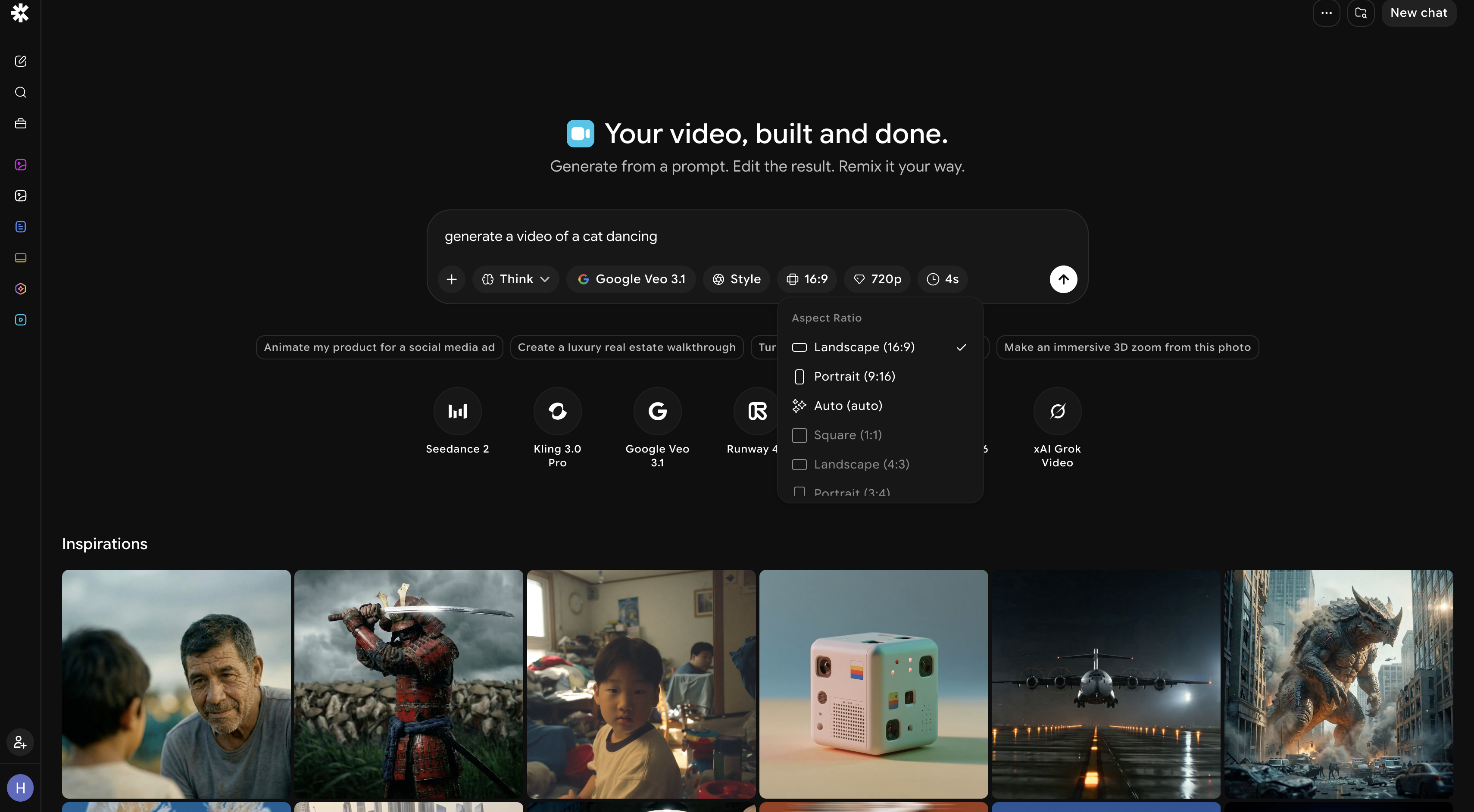
5. **Set your aspect ratio** – Select the format that fits your intended platform or use case (16:9, 9:16, 1:1, etc.).
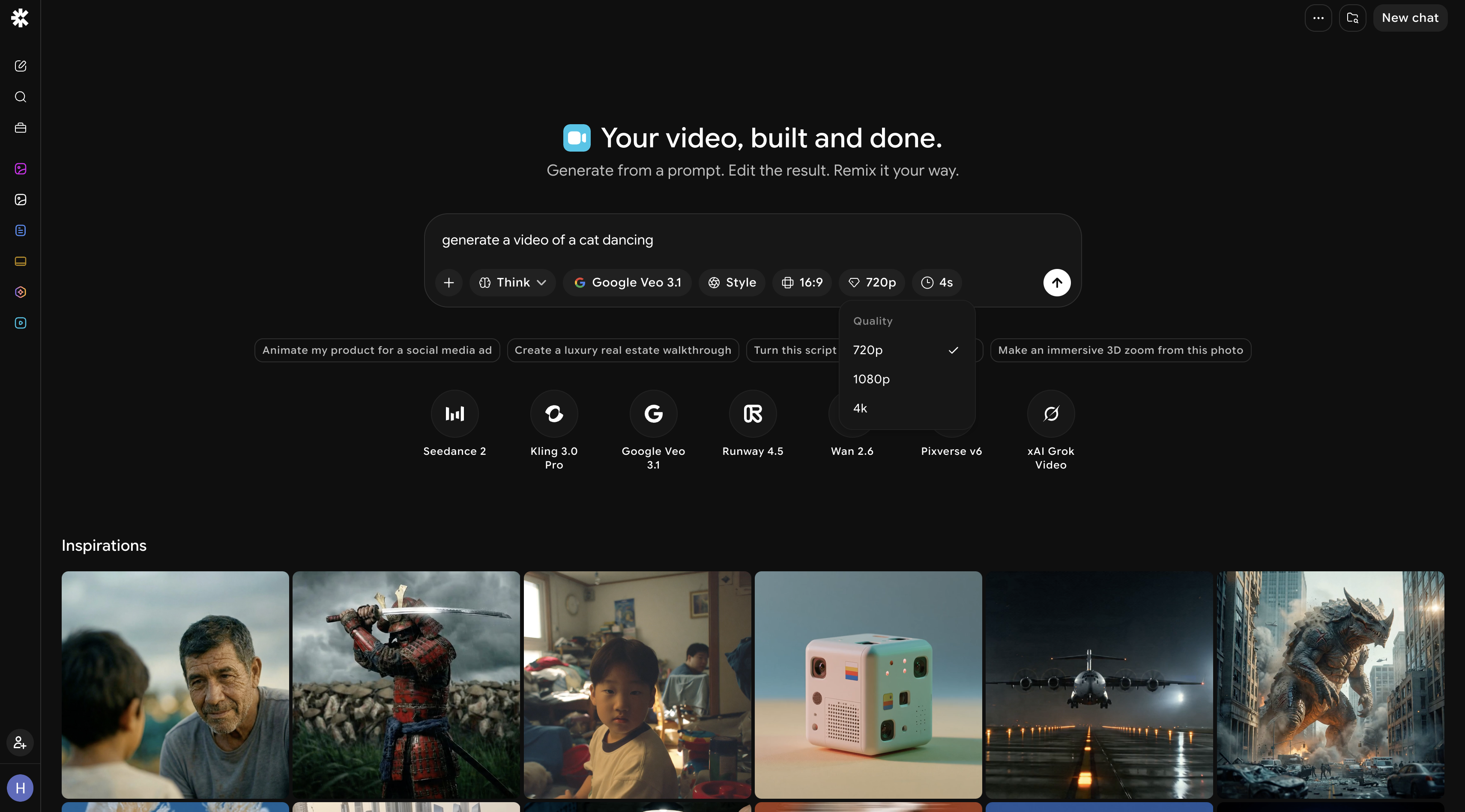
6. **Set the resolution** – Choose your preferred output quality.
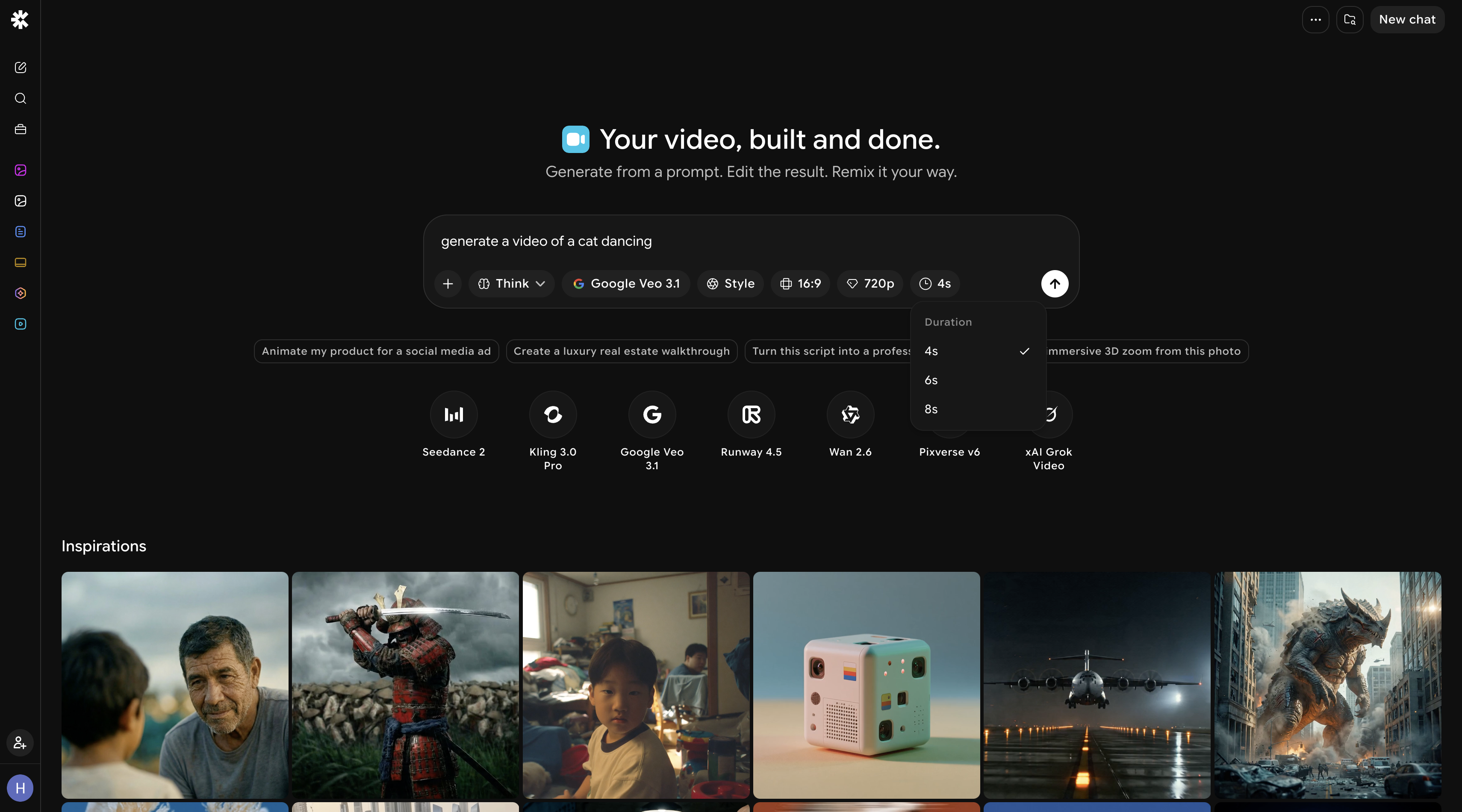
7. **Set the duration** – Specify how long you want the generated video to be.
8. **Click Generate** – Submit your request and wait for the AI to produce your video.
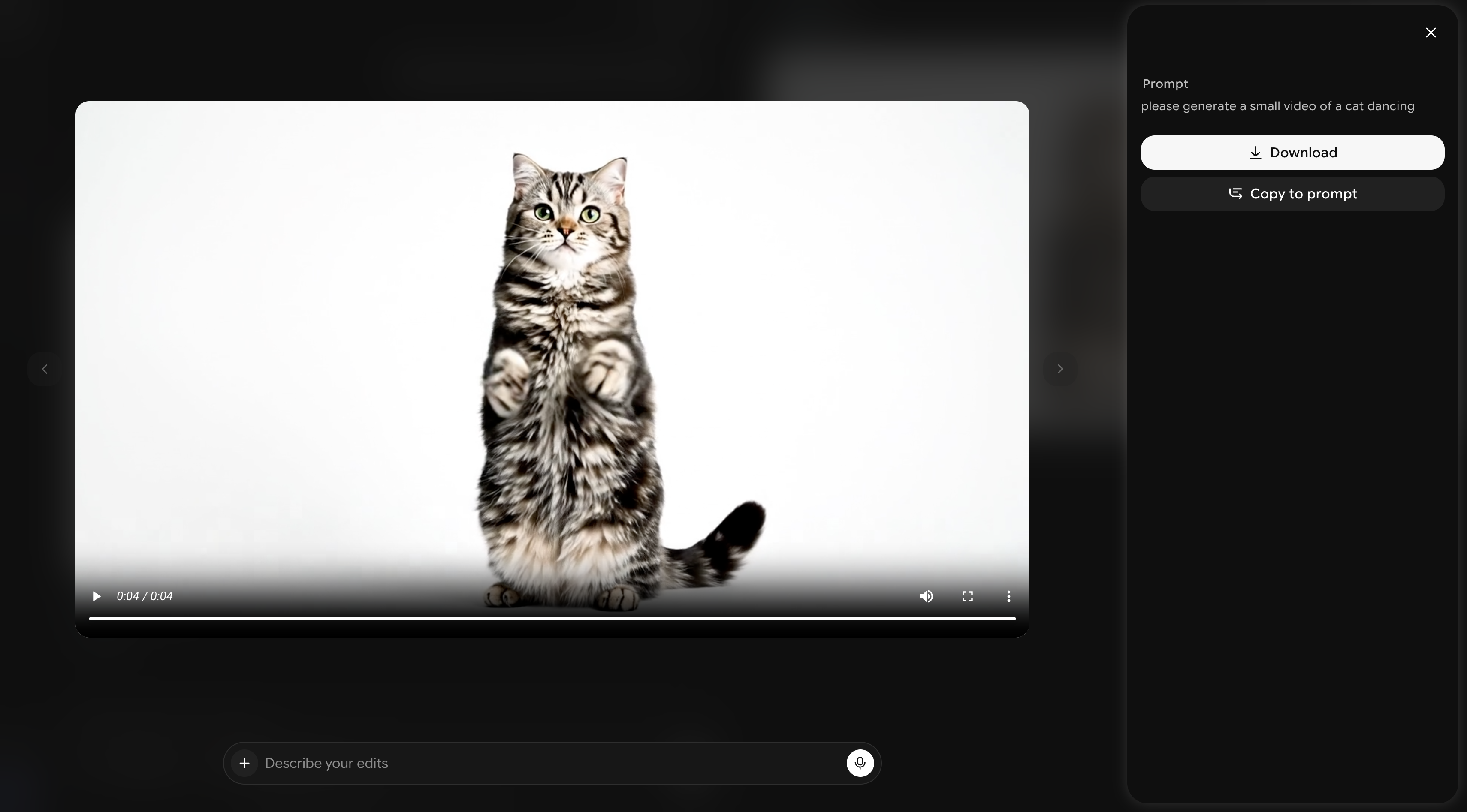
9. **Review the output** – Watch the generated video and evaluate the result.
10. **Refine if needed** – Adjust your prompt, settings, or style and regenerate until you are satisfied with the result.
11. **Download your video** – Export the final video in MP4 format.